
Repeated sign-in prompts can turn a useful security check into a source of pressure. Here is how MFA fatigue attacks work, where number matching helps and how SMBs can move toward stronger authentication without leaving staff unsure what to do.
How MFA fatigue attacks work
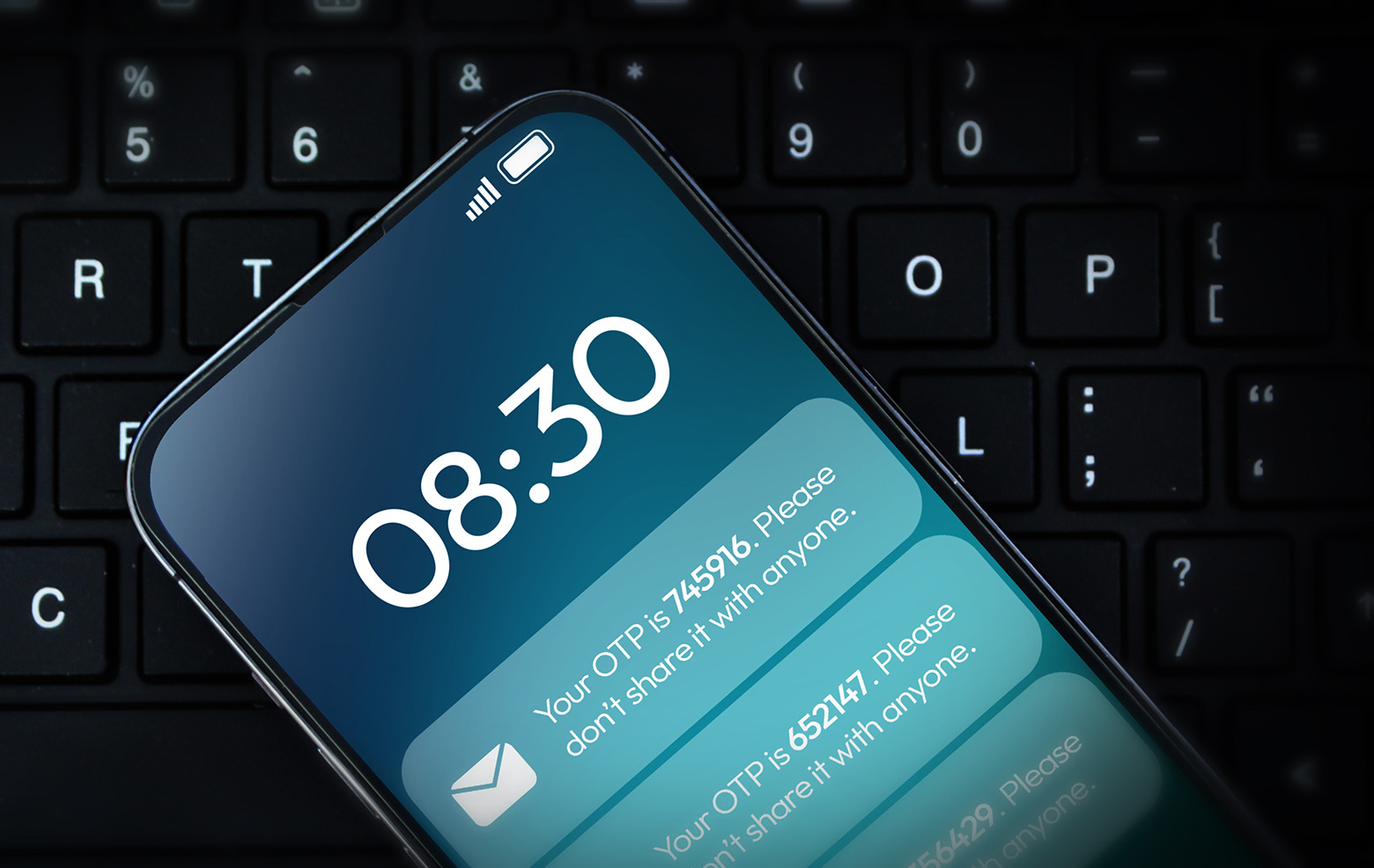
MFA fatigue, sometimes called push bombing, involves repeated authentication requests intended to pressure someone into approving an attacker’s sign-in. In a common pattern, the attacker already has a stolen password and repeatedly attempts to use it.
The notification is a security decision. Approving a request you did not initiate can let an attacker complete authentication. Their access depends on the account’s permissions and other controls; one approval does not automatically grant control of every business system.
This is an established attack technique. In its September 2022 incident update, Uber said a contractor received repeated login approval requests and eventually accepted one. The attacker then accessed the account and subsequently gained access to other internal tools.
Didn’t start a sign-in? Don’t approve it. Deny the request and report it through your usual IT support route. Never approve a prompt just to make the notifications stop.
Why a small team needs a clear response
Repeated prompts can arrive during a meeting, after hours or while someone is trying to finish urgent work. A caller claiming to be IT support may add pressure by saying an approval is needed to fix the problem.
The response should not depend on an employee deciding whether a voice sounds convincing. Give everyone a known helpdesk number or reporting route, and make clear that support will not ask them to approve an unexplained sign-in.
Review where an account could do the most damage: email, payroll, finance, remote access and administration. Prioritize stronger authentication for those accounts, while working toward consistent protection across the business.
Keep MFA enabled. The answer to unwanted prompts is to investigate the activity and improve the authentication process, not to remove the extra protection.
What number matching changes
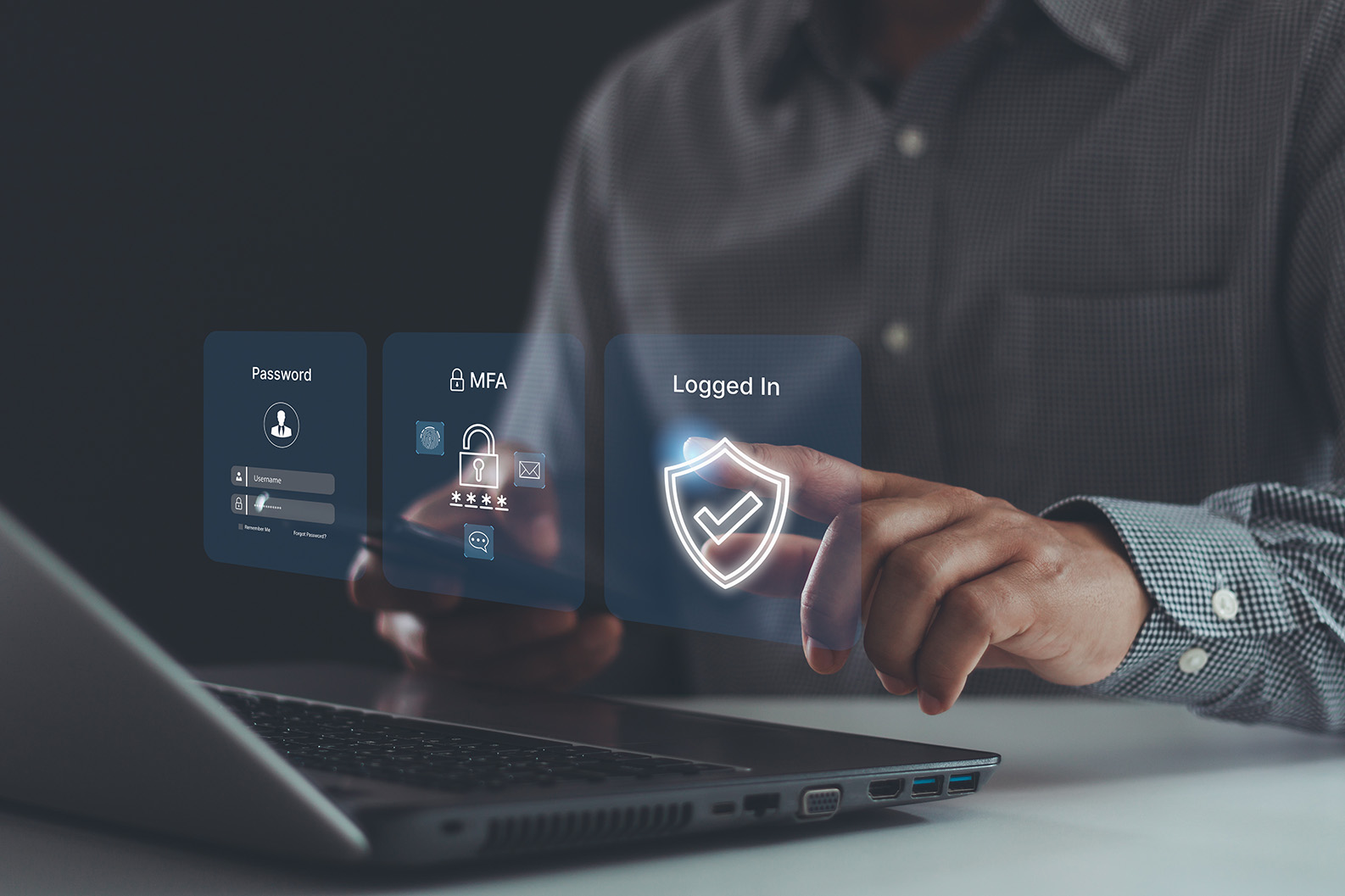
Number matching adds a check beyond a basic approval tap. A typical sign-in displays a number that the user must enter in the authenticator app. It helps connect the request to a sign-in the user is actively completing.
Microsoft’s current documentation says number matching is enabled for Authenticator push notifications. The experience can differ for same-device mobile sign-ins and integrations such as NPS or older AD FS configurations. Check the actual applications and sign-in paths your team uses.
Number matching reduces the opportunity for a blind approval. It does not make a push flow phishing-resistant: a scammer may still try to persuade someone to enter a number. Treat a number provided by an unexpected caller as an untrusted instruction.
Do not assume another provider’s defaults or features match Microsoft’s. Review your identity platform’s supported controls, the configured policy and any fallback methods.
Choose stronger authentication for sensitive access
Microsoft’s phishing-resistant MFA guidance recommends FIDO2 and passkey solutions as part of a phased rollout. These methods use cryptographic authentication tied to the legitimate service, rather than asking someone to approve an unrelated push request.
A fingerprint or face check can unlock an authenticator, but that alone does not tell you whether the underlying sign-in method is phishing-resistant. Evaluate the complete method, including registration and recovery.
Authentication methods are not interchangeable| Method | Practical distinction |
|---|---|
| Basic approval push | A user can approve without matching the prompt to a number on their sign-in screen. |
| Push with number matching | Adds a deliberate check, but remains vulnerable to social engineering. |
| One-time code | Avoids approval-push fatigue, but a user can still be tricked into giving away a code. |
| FIDO2 passkey or security key | Provides phishing-resistant authentication when supported and correctly deployed. |
Use our passkeys guide to plan compatibility, backup access and staff onboarding. Stronger authentication still needs secure devices, sensible permissions and a tested recovery process.
Check the policies around the prompt
Authentication settings are only part of the review. List the applications, remote-access systems and recovery routes that can still use weaker methods. Give each exception an owner and a plan.
- Review available push throttling, lockout and suspicious-activity controls for each provider.
- Define who receives alerts and who investigates them after hours.
- Check whether device and sign-in context can inform access decisions.
- Review unused accounts, excessive privileges and outdated integrations.
- Test registration, lost-phone recovery and emergency access before expanding a policy.
In Microsoft Entra, Conditional Access authentication strengths can require specific method combinations for a resource. Conditional Access requires Entra ID P1; risk-based capabilities have additional licensing requirements. Confirm your tenant’s licences and application support before promising a control.
Pilot changes with a small group and test normal work as well as recovery. A policy that locks people out without a reliable support path creates pressure for unsafe exceptions.
What to do with an unexpected request
Staff need a short response they can remember. Keep these instructions in onboarding material and the helpdesk knowledge base.
- Deny the request. Do not approve it, enter a caller’s number or disclose a verification code.
- Use a trusted support route. Contact IT using the number or portal you already know, rather than one supplied by the caller.
- Record the context. Note the time, account, application and whether requests repeated. Preserve useful evidence without sharing codes.
- Say immediately if you approved. Report an accidental approval promptly so IT can assess and contain the exposure.
An unexpected prompt warrants investigation, but it does not by itself prove that an attacker completed a sign-in. IT should correlate the report with authentication records.
Microsoft’s identity-risk investigation guidance includes reviewing sign-in details and, where appropriate, resetting credentials, blocking access or revoking sessions. A password change alone should not be treated as proof that an incident is contained.
Turn the lesson into an identity-security plan
Start with three questions: which accounts matter most, which sign-in paths still rely on weaker methods, and who acts when an employee reports an unexpected prompt?
Track progress with measures your team can explain: sensitive accounts protected by phishing-resistant methods, unresolved exceptions, reporting time and recovery tests completed. These measures are more useful than an unsupported promise that a single setting will eliminate breaches.
Include a short scenario in staff training. An employee receives repeated prompts, then a caller claims to be support. Practise denying the request and contacting the real helpdesk. Encourage early reporting without blame, including when someone made a mistake.
Talk to us about reviewing your identity-security controls and planning improvements around the systems you actually use. Confirm the scope of monitoring, response and training in your service agreement. If insurance is part of the discussion, confirm requirements and coverage with the insurer or broker rather than assuming a configuration guarantees eligibility.
Frequently asked questions
01Should we turn off MFA if staff receive repeated prompts?
No. Keep MFA enabled, deny unexpected requests and report them. IT should investigate the activity and review the affected sign-in method.
02Does an unexpected prompt mean my password was stolen?
It can indicate attempted use of compromised credentials, but the prompt alone does not establish the cause or prove access succeeded. Report it so IT can review the sign-in records.
03Does number matching stop every MFA attack?
No. It helps prevent blind approvals, but someone can still be manipulated into completing a request. Phishing-resistant methods provide stronger protection against phishing.
04Is using a fingerprint the same as phishing-resistant MFA?
Not automatically. Biometrics may unlock an app or device. The security properties depend on the authentication method being used, not just the way it is unlocked.
05What if I already approved a suspicious request?
Contact IT immediately through a trusted route and explain what happened. The response may include blocking access, resetting credentials, revoking sessions and investigating account activity. Do not assume the problem is resolved because the prompts stopped.
Make safer sign-ins part of everyday work.
Talk to us about reviewing MFA, sensitive account access and the response your team needs when a prompt looks wrong.
Talk it through